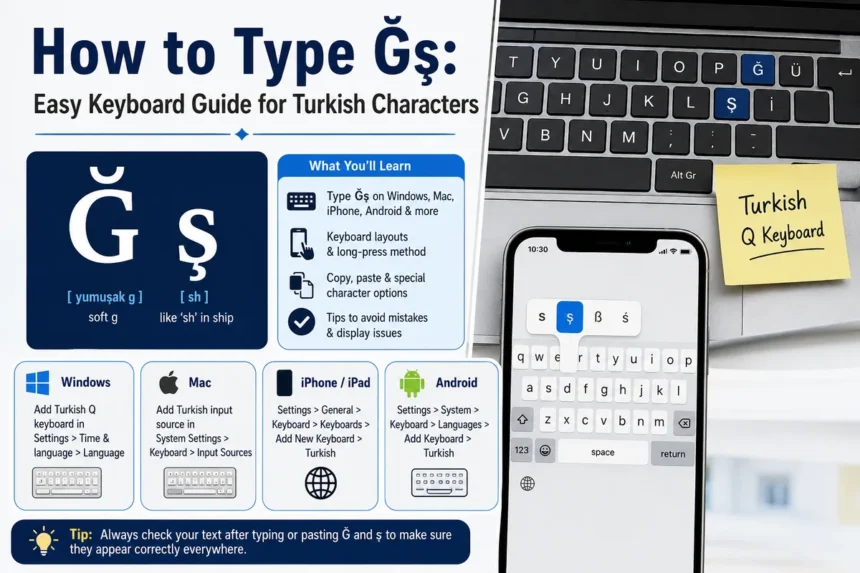
Typing Ğş can feel confusing at first because these letters do not appear on the standard English keyboard. Many people see them in Turkish names, addresses, school work, travel forms, language lessons, product titles, or social media posts and wonder how to enter them correctly. The good news is that you do not need special hardware to type them. You only need the right keyboard setting, a simple long-press method, or a safe copy-and-paste habit. This guide explains how to type these Turkish characters on Windows, Mac, iPhone, iPad, Android, and common writing apps in a clear way, so you can use them with more confidence. It also explains why the letters matter, what can go wrong when they are missing, and how to check your text before you send, print, or publish it. Once you understand the basic options, typing Turkish letters becomes a normal part of everyday writing instead of a frustrating problem.
What Does Ğş Mean?
Ğş is not normally used as one complete Turkish word by itself. It is better understood as two Turkish letters placed together: Ğ and ş. The first letter, Ğ, is called “soft g” in English and yumuşak ge in Turkish. It usually does not sound like a hard English “g.” Instead, it often softens, stretches, or connects nearby vowel sounds. The second letter, ş, sounds like “sh” in English words such as “ship” or “short.” When these characters appear in names or text, they should not be replaced casually with plain “g” and “s,” because that can change how the text looks, sounds, and feels to Turkish readers. This is especially important when a person’s name, a city name, a brand name, or a Turkish phrase is involved. Even when readers can guess the meaning, the correct letters make the writing look more careful and natural.
Why These Turkish Characters Matter
Turkish uses a Latin-based alphabet, but it includes letters that English does not use in everyday spelling. These include ç, ğ, ı, ö, ş, and ü. Because of that, a normal English keyboard may miss important Turkish letters unless the user changes the input language or uses another method. This matters most when writing names, official details, place names, school assignments, translations, and public content. A name with ş may look incomplete when written with only s, and a word with ğ may look less natural when the letter is removed. Correct characters show care, improve readability, and help the text match the original Turkish spelling. They can also prevent small mistakes in forms, certificates, email addresses, file names, and records. In casual chat, people may sometimes write without special marks for speed, but in polished writing, the proper characters are the better choice.
Fastest Ways to Type Ğş
The best method depends on your device and how often you type Turkish. If you only need the characters once, copying them may be enough. If you type Turkish often, adding a Turkish keyboard is usually faster and cleaner. The most common options are:
- Add Turkish Q or Turkish F keyboard layout on your computer.
- Long-press the G or S key on many touch keyboards to find related characters.
- Copy Ğ, ğ, Ş, or ş from a trusted text sample and paste it where needed.
- Use a character map, symbol menu, or special character picker in writing apps.
Choose the method that feels easiest, but always check the final result before sending or publishing. For daily use, a keyboard layout is worth setting up because it keeps the letters close at hand. For rare use, copy and paste is fine, as long as you copy the right uppercase or lowercase form. This small habit saves time and helps you avoid replacing Turkish letters with rough English matches. It also helps you stay consistent when the same character appears more than once in a title, name, or short paragraph.
How to Type Ğş on Windows
On Windows, the most reliable way is to add a Turkish keyboard layout from the language settings. Open Settings, go to Time & language, then Language & region, and add Turkish as a language or add a Turkish keyboard under your preferred language. After it is added, you can switch between keyboards from the taskbar language icon or with the keyboard shortcut shown by your system. Many users prefer Turkish Q because it feels closer to the common QWERTY layout. On a Turkish Q layout, Ğ is placed near the right side of the top letter row, and Ş is placed near the right side of the home row. After switching layouts, test the letters in Notepad or another simple text box before using them in an important document. If you use a laptop, remember that the printed letters on the keys may not match the active layout, so it can take a little practice. You can also keep an on-screen keyboard open while learning where the Turkish letters are placed. If you work with Turkish often, pinning the language switcher or learning the quick switch shortcut can make the process much faster.
How to Type Turkish Characters on Mac
On Mac, the cleanest method is to add a Turkish input source. Open System Settings, go to Keyboard, choose Input Sources, and add Turkish. You can then switch input sources from the menu bar or by using the keyboard shortcut set on your Mac. This is helpful because the keys will behave like a Turkish keyboard, which makes repeated typing much easier. Some Mac users also use the character viewer for occasional letters. To open it, place the cursor where the letter should go, open the emoji and symbols viewer, and look for the needed character. This method is slower than a Turkish input source, but it is useful when you only need one or two letters and do not want to change your full layout. If you write in both English and Turkish, keep the input menu visible in the menu bar, so you can quickly see which layout is active. That simple visual check can prevent accidental typing errors. You may also use the keyboard viewer to see which physical keys create Turkish letters before you memorize them.
How to Type Ğş on iPhone, iPad, and Android
On phones and tablets, the easiest method is usually the long-press menu or adding a Turkish keyboard. On iPhone and iPad, go to Settings, then General, Keyboard, Keyboards, and add Turkish. After that, use the globe icon on the keyboard to switch languages. On many touch keyboards, holding a base letter opens a small row of related characters. For example, holding S can show ş, and holding G may show ğ when the right language options are active. On Android, the steps can vary by brand, but the usual path is Settings, System, Keyboard, On-screen keyboard, then Languages. Add Turkish to your keyboard app, switch to it when needed, and check whether predictive text is helping or changing the letters incorrectly. Mobile typing is often easier than desktop typing because long-press menus are built for special characters. Still, the Turkish keyboard option gives better suggestions and makes full Turkish sentences much smoother to write. If a letter does not appear when you long-press, update your keyboard app or add Turkish as an active language.
Using Turkish Characters in Documents, Websites, and Online Forms
When typing Turkish characters in documents, website forms, usernames, titles, or posts, always review the text after saving or submitting. Most modern apps support Turkish letters well, but problems can still happen in older systems, badly designed forms, or fonts that do not include every character. If the text changes into boxes, question marks, or strange symbols, try a different font, paste into a plain text editor first, or retype the letters after switching to a Turkish layout. For web pages and article drafts, keep the spelling consistent from the title to the body. Mixing Ğ with plain g or ş with plain s can make the writing look careless, especially when the topic is about Turkish characters. Also watch the difference between uppercase and lowercase letters. Ğ and ğ are not the same shape, and Ş and ş should be used according to normal capitalization rules. Careful checking is the easiest way to make the final text look clean. If you prepare text for a client, school, or public page, save a backup copy before making wide changes.
Final Thoughts
Typing Ğş is simple once you know which method fits your device. For one-time use, copy and paste is quick. For regular Turkish writing, adding a Turkish keyboard is the better choice because it saves time and reduces mistakes. Windows and Mac users can switch input layouts, while phone users can use long-press menus or add Turkish from keyboard settings. The most important step is to check the finished text before sharing it. Turkish letters carry meaning, sound, and identity, so using them correctly helps your writing look clean, respectful, and easier to read for people who know the language. You do not have to learn the full Turkish alphabet at once to type these characters correctly. Start with the letters you need, practice them in a simple note, and use the same method each time until it feels natural. A few minutes of setup can save many small corrections later. This is useful for students, writers, travelers, office workers, and anyone who wants Turkish text to look clear.
Frequently Asked Questions (FAQs)
Is Ğş a Turkish word?
Ğş is usually not treated as a complete Turkish word on its own. It is best understood as two Turkish characters shown together: Ğ and ş, which are both part of Turkish writing. You may see them together in examples, tests, or discussions about Turkish letters, but the pair should not be confused with a normal dictionary word.
What is the easiest way to type Ğş?
The easiest way is to copy the characters if you only need them once. If you type Turkish often, adding a Turkish keyboard layout is better because it lets you type the letters directly. This also lowers the chance of pasting the wrong letter form into names, headings, or formal text.
How do I type ş on my phone?
On many phones, press and hold the S key until extra character choices appear, then slide to ş. If it does not appear, add Turkish as a keyboard language in your phone settings. Once Turkish is active, your keyboard is more likely to show the correct letters and offer better writing suggestions.
How do I type Ğ on Windows?
Add a Turkish keyboard layout in Windows language settings, then switch to that layout when you need Turkish letters. Turkish Q is often easier for people already used to a QWERTY keyboard. After switching, test the key positions in a blank note so you can learn them without changing an important document.
Why do Turkish letters sometimes turn into strange symbols?
This can happen when an app, website, font, or older system does not handle the character correctly. Try using a modern font, a plain text editor, or a different browser or app. If the problem happens after copying text, paste it without formatting and then apply the style again.
Can I replace Ğ and ş with G and S?
You can do it only when the system does not allow Turkish characters, but it is not ideal. The original letters are more accurate and respectful, especially for names, places, and Turkish words. When the correct characters are supported, use them instead of plain English letters.
You might also like: Ểmgency Review 2026: Features, User Experience, Pros, and Cons